Component Palette
This page serves as a palette for all the components this project has to offer.
If you want to know where we started and why components exist see this.
Definitions
- WYSIWYG: What you see is what you get.
- Component: A lego block like code element you can use for more advanced content like buttons.
- MD: Shorthand for Markdown
- MDX: Shorthand for MarkdownExtended (ie. MDX is the name of the rendering engine we use.)
- Child/Children: Content that is wrapped by a Component. New lines between content will be recognized as a new child.
- Child Rule: A pattern introduced for more complex components that recognized each individual child as a repeatable element of a component. (ie. List, InfoBlock, ect.)
Disclaimers
- To see dark/light mode variants click the moon/sun in the header
- This palette is primarily to showcase component usage in a vacuum.
- For an in-depth chart on props available for these components please see the Cheatsheet
- Any component that's not listed here, but exists in the project
- Always remember. What you see is what you get. (WYSIWYG). We follow the markdown spec and will NOT deviate from it.
Accordion
Click the Accordion header to show and hide the content it offers.
The first element is always the header. Every other element will be hidden away.
<Accordion>Hello World This is hidden inside the Accordion.</Accordion>
Hello World
Aligner
This is a utility component built to work with the
ImageDev Note (Réjon): This component exists because remark-images wraps our elements automatically with styles that make it difficult to align an image. It only really works well if the container of the image is large enough to facilitate it.
<Aligner center sx={{height: '400px', width: '100%'}}>
<Image src="/images/starfox.png" />
</Aligner>
<Aligner bottom right sx={{height: '400px', width: '100%'}}>
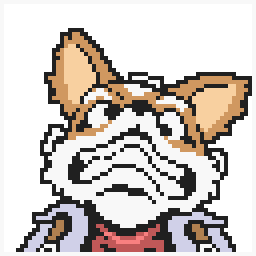
</Aligner>

Authors
Child Rule in Effect
This is a utility component originally built to display the AllContributors grid.
Yet, it also serves as good way for folks to set an author at the end of a page.
<Authors all/>

<Authors list author="@MaximumCrash"/>
 isaacpearl
 Be Fit Sandpiper
 Tim Black
 Amy Jung
 shea-fitz
 Davidutro
 Aaron Anderson
- 💻
🎨
💡
It's also possible to render a custom author by filling out the correct information like so:
Dev Note(Réjon): You MUST fill out the information EXACTLY how it's written below to get a custom author to render with the correct information.
<Authors list>
<Box>
 [Réjon Taylor-Foster](https://rejontaylor.com)
[Another Test](https://github.com) [Twitter](https://twitter.com)
[Medium](https://medium.com) # Réjon Taylor-Foster ## Lorem ipsum dolor sit
amet, consectetur adipiscing elit. Donec pharetra quam augue. Nulla
facilisi. Ut sed volutpat nisl. Cras eget nunc sed erat malesuada faucibus.
Donec non vehicula elit. Interdum et malesuada fames ac ante ipsum primis in
faucibus. Sed blandit imperdiet maximus. In hac habitasse platea dictumst.
Sed id luctus justo. Morbi in tortor et quam lacinia finibus ac in quam.
Suspendisse mollis efficitur dui eu laoreet. ### MaximumCrash - ideas -
audio - doc - 👀 - 💦
</Box>
</Authors>
🤔
🔊
📖
👀
💦
@MaximumCrash
Lorem ipsum dolor sit amet, consectetur adipiscing elit. Donec pharetra quam augue. Nulla facilisi. Ut sed volutpat nisl. Cras eget nunc sed erat malesuada faucibus. Donec non vehicula elit. Interdum et malesuada fames ac ante ipsum primis in faucibus. Sed blandit imperdiet maximus. In hac habitasse platea dictumst. Sed id luctus justo. Morbi in tortor et quam lacinia finibus ac in quam. Suspendisse mollis efficitur dui eu laoreet.
Button
It's a button. Not much more to it.
Dev Note(Réjon): Because this site doesn't provide any stateful functionality (besides light/dark modes), Buttons are built to serve as a unique visual display of links.
<Button to="/"> ET phone Home </Button>

<Button secondary inline to="/resources/recipes/palette"> Inlined Secondary </Button>

<Button outline to="/resources/recipes/palette"> Click Here </Button>

<Button small to="/resources/recipes/palette"> Small Button </Button>

<Button to="https://makerdao.com"> External Link Button </Button>
Callout
This component is for callouts. It can also be written as a blockquote
>To have icons show up you have to provide an icon name from our icon palette. See the Icon Palette for those.
<Callout>

Howdy

</Callout>

<Callout icon="lightbulb">

Maker dao callout

</Callout>

> blockquote Callout Markdown Style
Howdy
Maker dao callout
blockquote Callout Markdown Style
Checklist
Child Rule in Effect
This is a non-functioning checklist component. It is simply styled to look like one.
<Checklist>
  Child A Child B
  <Box>
    Child C<Checklist>Child C - A Child C - B</Checklist>
  </Box>
</Checklist>
- Child A
- Child B
- Child C
- Child C - A
- Child C - B
Chocolate (Box)
Child Rule in Effect
Originally named "Chocolate Box" components, this component takes into consideration the child rule.
Each child is recognized as a new element. Thus it's recommended for more diverse content to be contained
by a
Box<Chocolate>
<Box>
<Icon size={"40px"} name="maker" />
##### Child A Some content about something
</Box>
<Box>
<Icon size={"40px"} name="globe" />
##### Child B Some content about something
</Box>
<Box>
<Icon size={"40px"} name="wrench" />
##### Child C Some content about something
</Box>
</Chocolate>
Child A
Some content about something
Child B
Some content about something
Child C
Some content about something
Code
There are 2 types of code elements.
- The code blocks you've been seeing so far that leverage 3 back ticks
(```) - Inline code that leverage 1 back tick
like this
#2 makes use of the
Code<Code>
const var = "variable";
</Code>
const var = "variable";However inline code doesn't support language highlighting.
#1 makes use of the PrismJS library in conjunction with ThemeUI to render code blocks like so.
Dev Note(Réjon): We only support so many languages (JS, Text, HTML, CSS, and Markdown). If you want more, check out the PrismJS documentation about it.
You can provide a language to show it's tab.
const variable = "string";
If you want to show a file name just provide
title=file-name.jspalette.mdx
const example = "This is an example with a title tab";
Column
Child Rule in Effect
This component follows a similar pattern to that of the
Chocolate BoxBoxDev Note(Réjon): In design documentation this is mentioned as the "2-Column Comparison" component.
<Column>

Child A - Full Width

</Column>

<Column>

Child A - with Sibling

Child B - with Sibling

</Column>

<Column>

<Box>

#### Child A

Full Width with a Header

</Box>

</Column>


<Column>

<Box>

#### Child A

With a sibling and a Header

</Box>

<Box>

#### Child B

With a sibling and a Header

</Box>

</Column>
Child A - Full Width
Child A - with Sibling
Child B - with Sibling
Child A
Full Width with a Header
Child A
With a sibling and a Header
Child B
With a sibling and a Header
Info Block
Child Rule in Effect
This component is similar to that of a Hero image content section.
Depending on when you put the image is the side it will show up on. If there's no image first or last in content, the content will be centered.
It is highly recommend you use a box component here. Each child is recognized and will render as so.
<InfoBlock>

<Box>
### Hello World
Some more content
</Box>
</InfoBlock>
<InfoBlock>
<Box>
### Hello World
Some more content
</Box>
<Image src="/images/starfox.png" />
</InfoBlock>
<InfoBlock>
<Box>
### I am centered
<Image src="/images/starfox.png" />
Some more content
</Box>
</InfoBlock>
Hello World
Some more content
Hello World
Some more content
I am centered
Some more content
List
The List component is great if you want to display content...in the form of....a list.
Child Rule in Effect
To get the most out of lists (ie. headers, subcontent, links) you MUST use a
BoxLink<List>
Element A
Element B
</List>
<List>
<Box>
Element A Header
Some content below the header
</Box>
Element B with no subcontent
<Box>
Element C Header
Some content below the header
</Box>
</List>
<List>
<Link to="/">
Link Element A Header
Some content below the header
</Link>
<Link to="https://makerdao.com/">
External Link Element B Header
Some content below the header
</Link>
</List>
Element A
Element B
Element A Header
Some content below the header
Element B with no subcontent
Element C Header
Some content below the header
Link Element A Header
Some content below the header
External Link Element B Header
Some content below the header
Process
This components great for stepping folks through a numbered process.
Child Rule in Effect
Dev Note(Réjon): In design specs this in named "Process Stepper"
<Process>
  ### Process Information 1 ### Process Information 2
  <Box>
    ### Process Information 3 Some more content here. The usual suspects and
    whatever you'd want to put.
  </Box>
</Process>
1
Process Information 1
2
Process Information 2
3
Process Information 3
Some more content here. The usual suspects and whatever you'd want to put.
Status Banner
This is your run of the mill status banner. It's also capable of being sticky.
<StatusBanner>

Regular old status banner

</StatusBanner>

<StatusBanner warning>

Warning status!

</StatusBanner>

<StatusBanner sticky>

I will stick to the top of the screen.

</StatusBanner>
Regular old status banner
Warning status!
I will stick to the top of the screen.
Tables
We support the lowest spec for tables in MD. None of that Github alignment stuff here.
| Header A       | Header B                    |
| --------------- | ------------------------- |
| Content A        | Content A              |
| Content B          | Content B              |
| Header A | Header B |
|---|---|
| Content A | Content A |
| Content B | Content B |
Tout
Child Rule in Effect
Tout components are meant to be like ultra fancy links, but you can put anything inside of them.
If there's only one child it will be full width.
<Tout>

Element A - Full Width

</Tout>


<Tout>

### Element A

### Element B

</Tout>
Element A - Full Width
Element A
Element B
Video
It's possible to show videos here. They'll always be full width with no styles.
`youtube: [Your love!](mzDVaKRApcg)`

<Video src="https://www.youtube.com/embed/kpk2tdsPh0A"/>
Text
Header 1
Header 2
Header 3
Header 4
Large Text
Bold text
Regular text
Small text
Micro text
Caps
Link This is a living document. Add or remove components as you change things. And always remember to have fun.
- 💻
🎨
💡